
See Your Wood Wall Art on Your Wall
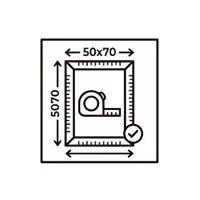
No More Guessing Sizes
See the exact size of every piece on your wall before you order. Avoid too small or too big regrets.
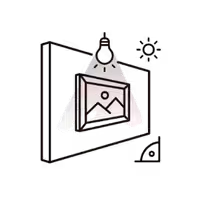
Real Perspective and Lighting
Our smart tool adjusts to your wall angle and lighting. What you see is what arrives at your door.
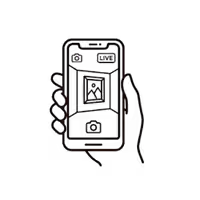
Works on Your Phone
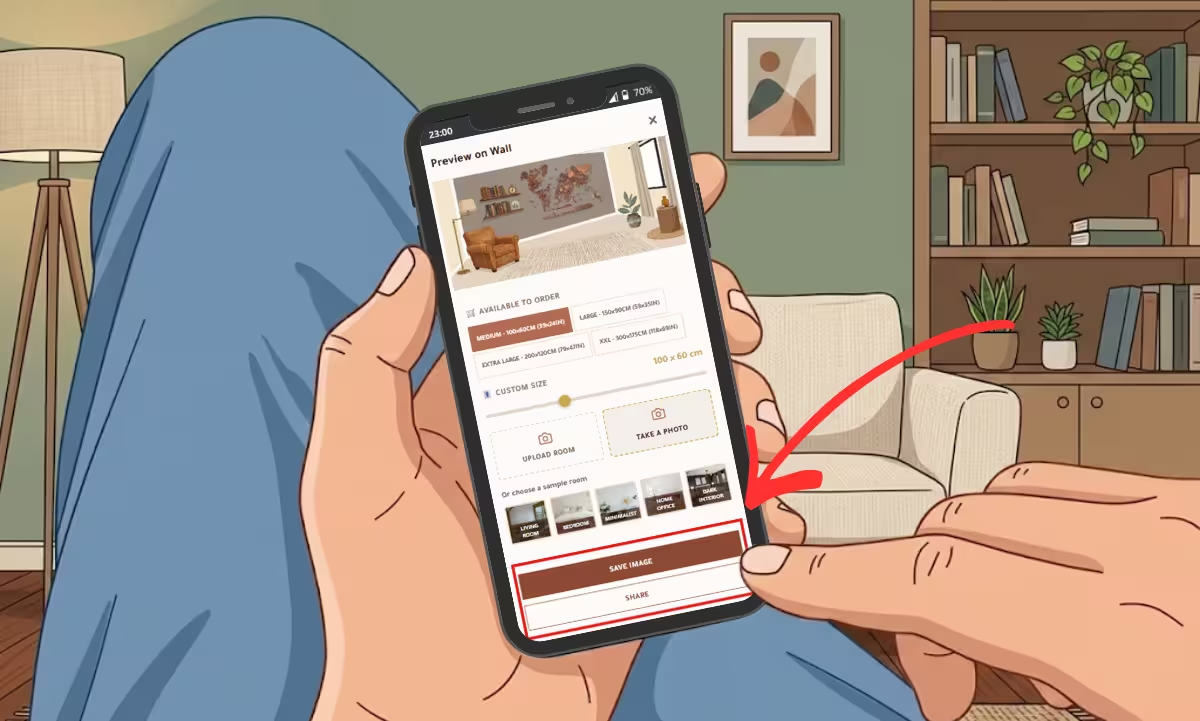
Use your phone camera to snap a live photo of your wall and preview instantly. No app install needed.
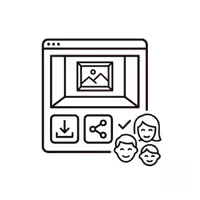
Save and Share with Family
Download the preview or share it with your spouse before ordering. Decide together, order with confidence.
Three Ways to Preview on Your Wall
Pick the method that fits you best. All three take less than a minute.
Fastest – 15 seconds
Method A: Sample Rooms
Best for: Quick visual check when you do not have a room photo ready.
Step One
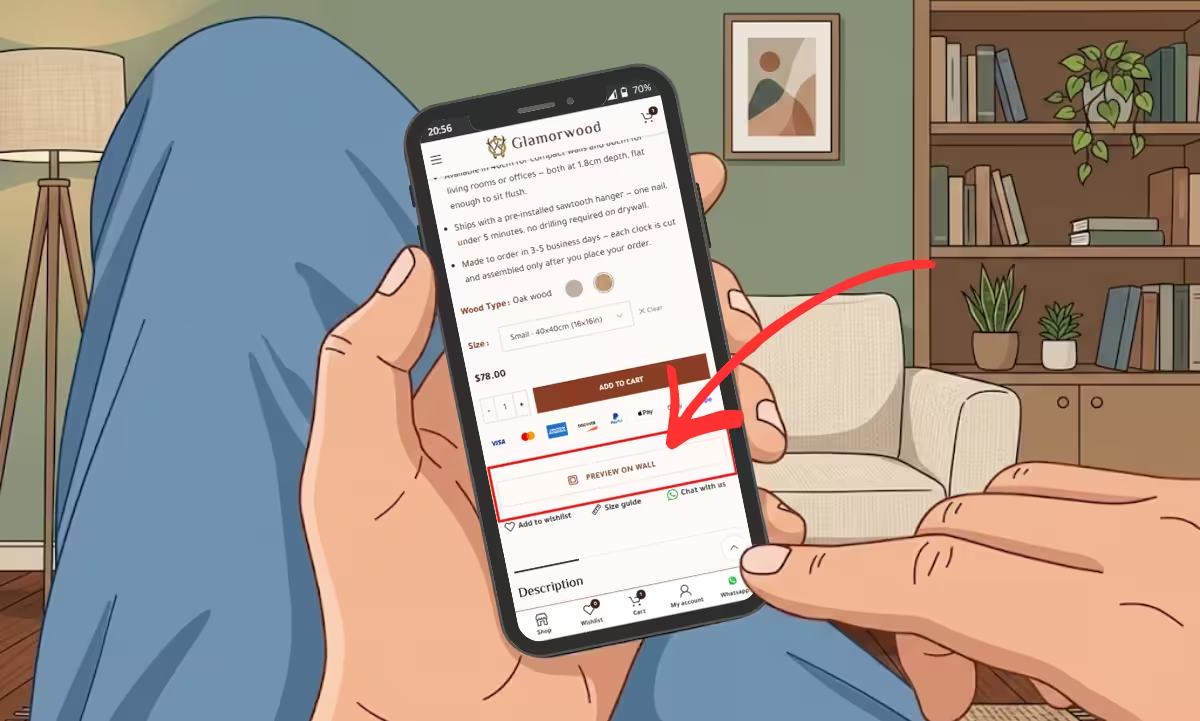
Open the preview tool
On any product page, tap the View on Your Wall button. The preview window opens instantly — no app install needed.
Step Two
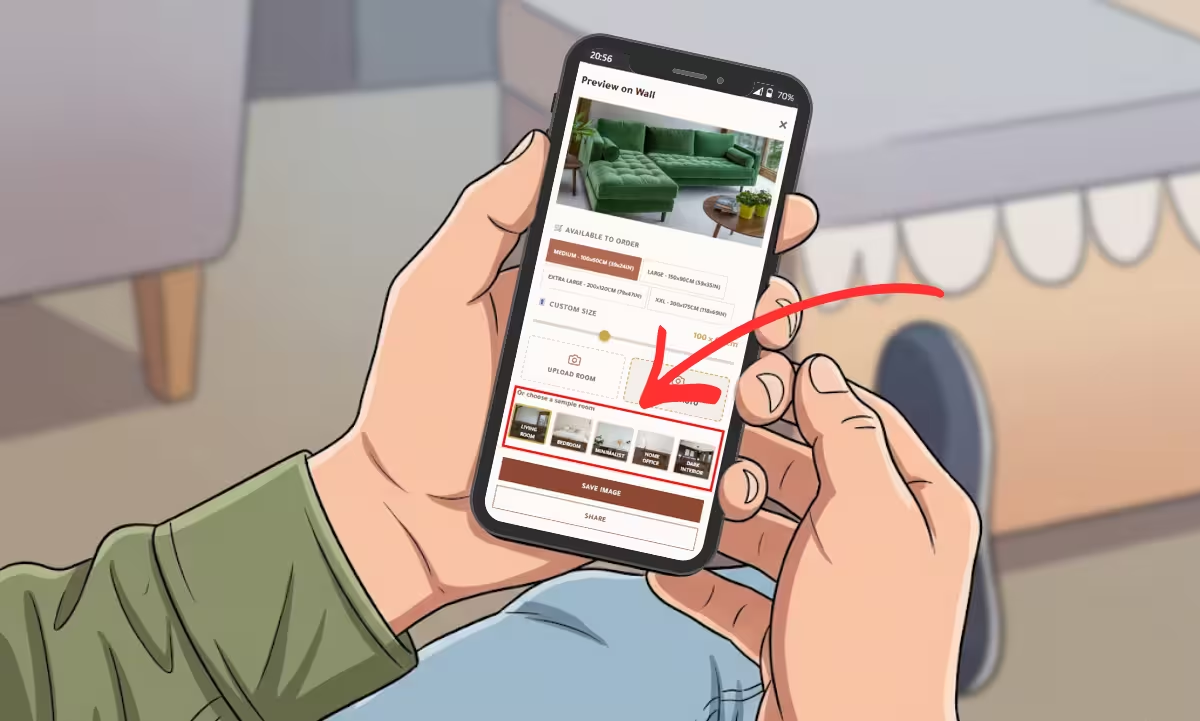
Pick a sample room
Scroll to the bottom of the preview window and pick one of the sample rooms that matches your home style.
Step Three
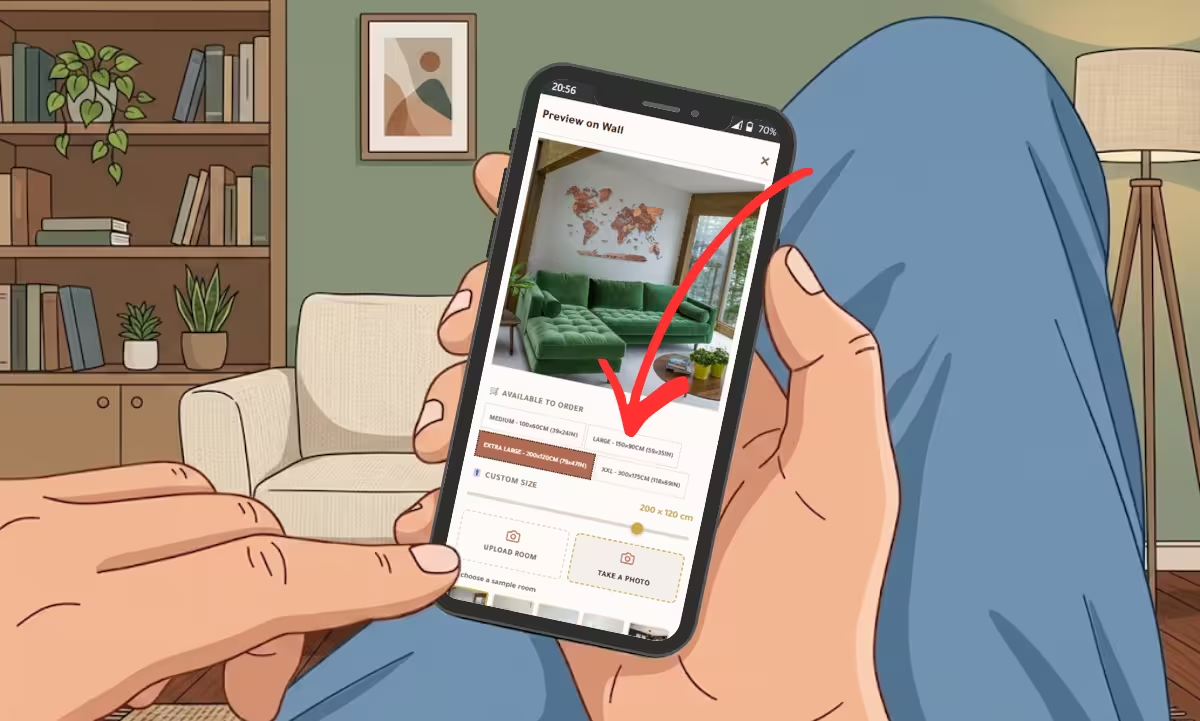
Adjust size and save
Adjust the size using the pills or custom slider, then drag the art to reposition it. Save or share when done.
Most Accurate
Method B: Upload Your Room Photo
Best for: When you want to see the piece on your actual wall with the furniture and colors you have at home.
Step One
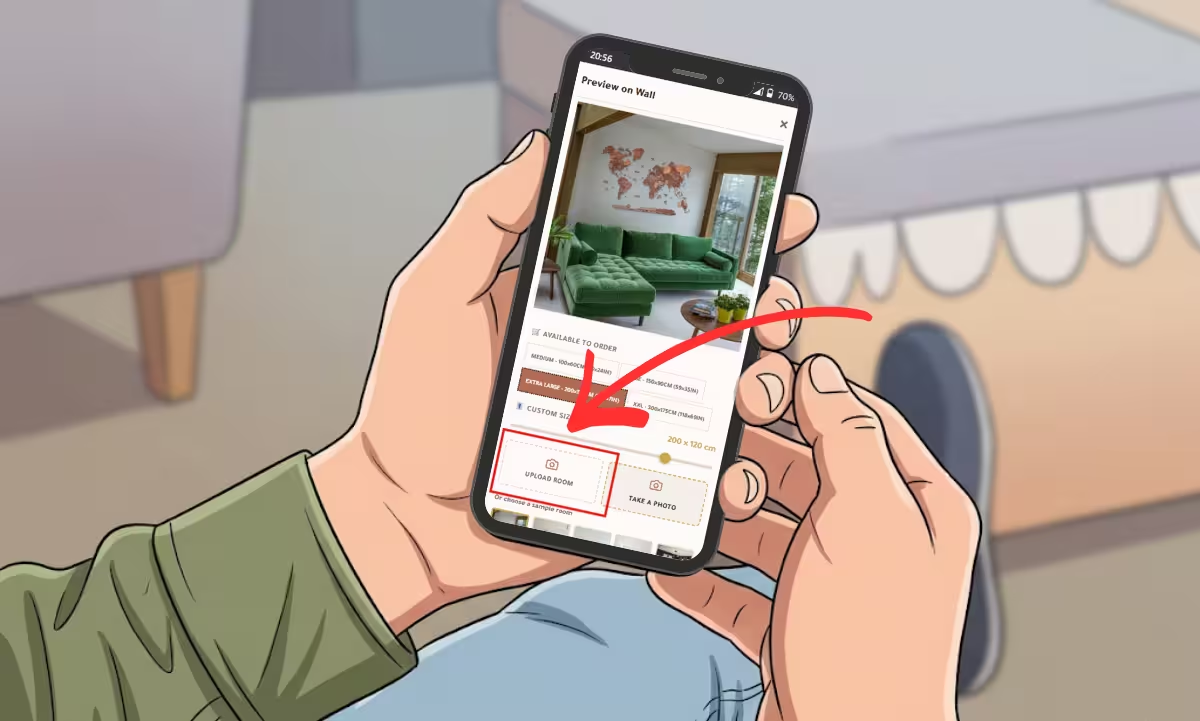
Tap Upload Room
On the product page, tap View on Your Wall, then Upload Room to start.
Step Two
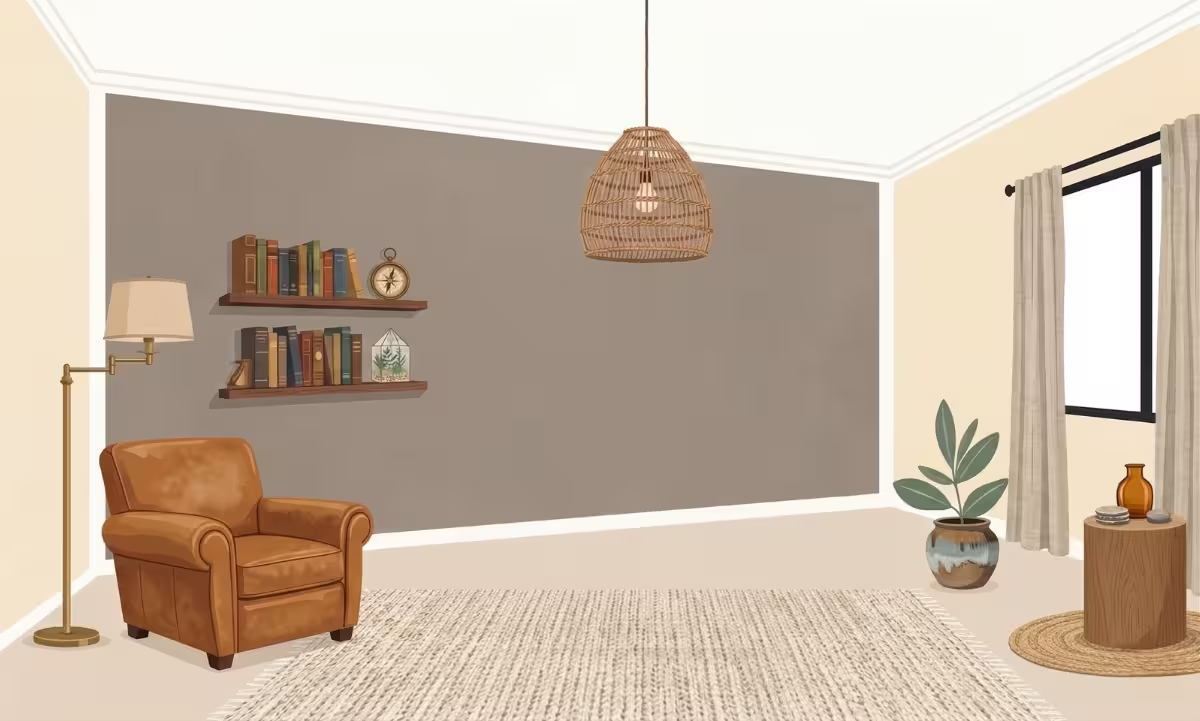
Pick a clear wall photo
Choose a clear, straight-on photo of your wall (see Pro Tips below). The tool shows the photo with four yellow dots at the corners.
Step Three
Align corners and height
Drag each yellow dot to match the exact corners of your wall. Use the Wall Height slider (most walls are 240 to 270 cm).
Step Four
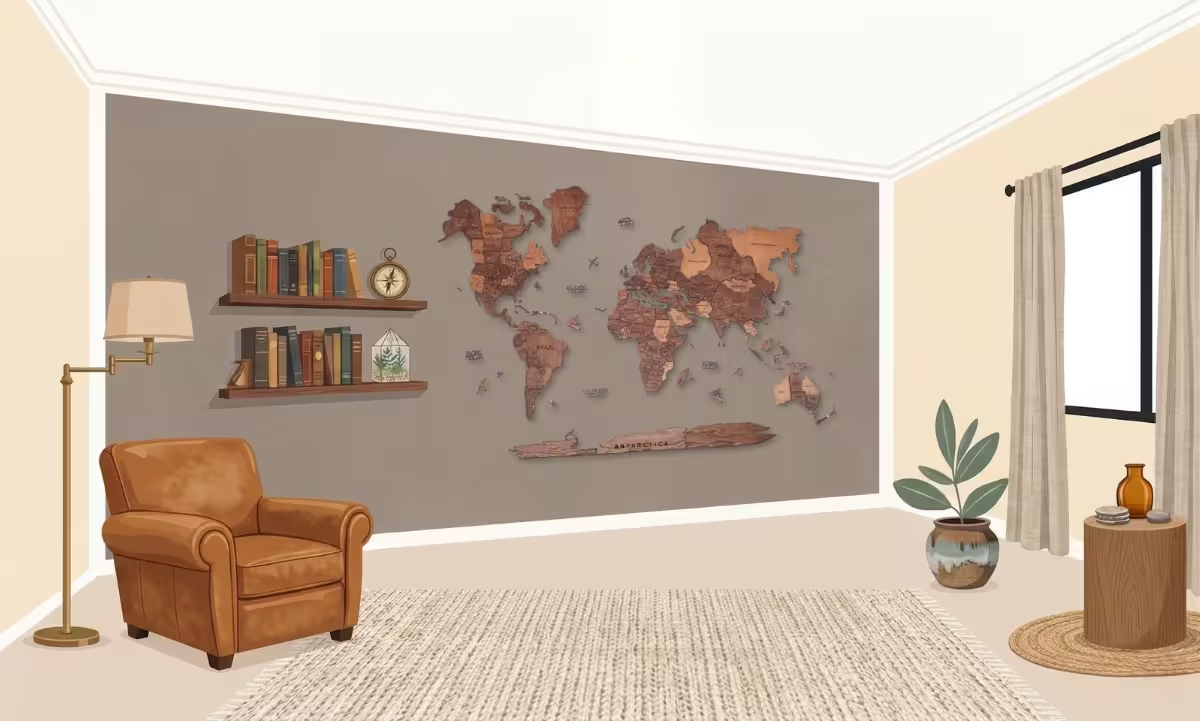
Preview and save
Tap Done. Your art appears on the wall. Adjust the size, move it around, and save when it looks right.
Mobile Only
Method C: Live Camera
Best for: Customers on a phone who want a one-tap preview of a wall right in front of them.
Step One
Open the camera
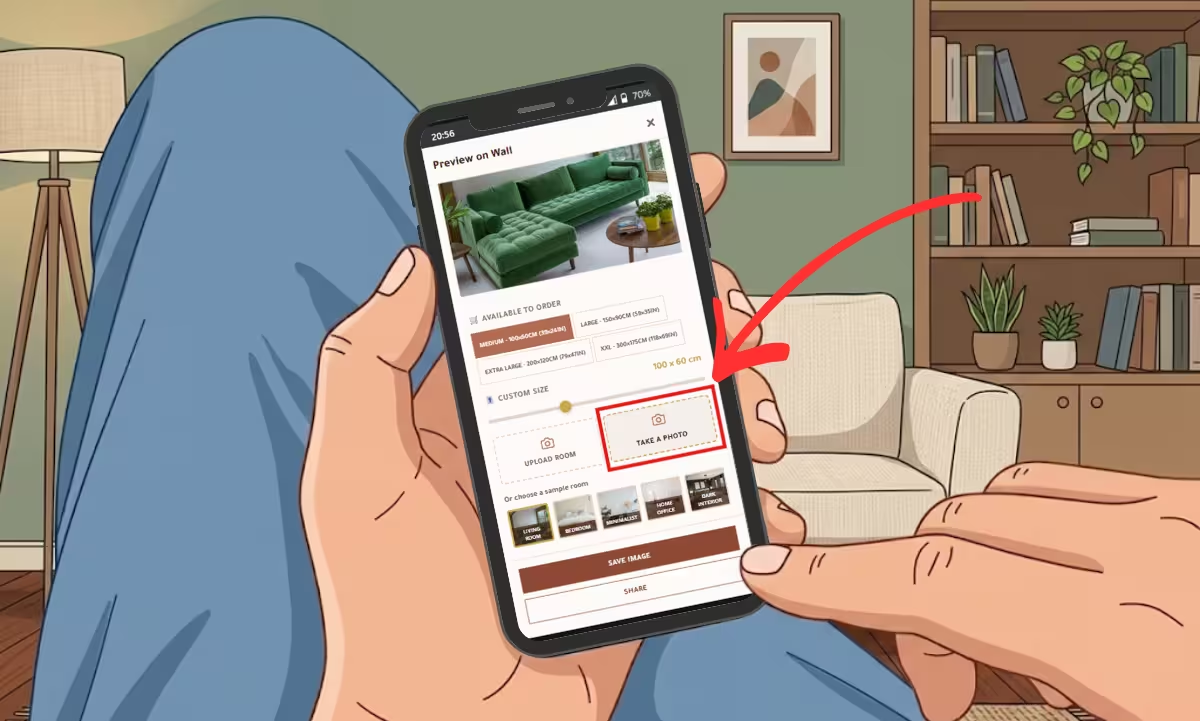
On your phone, tap View on Your Wall, then Take a Photo. Your camera opens instantly.
Step Two
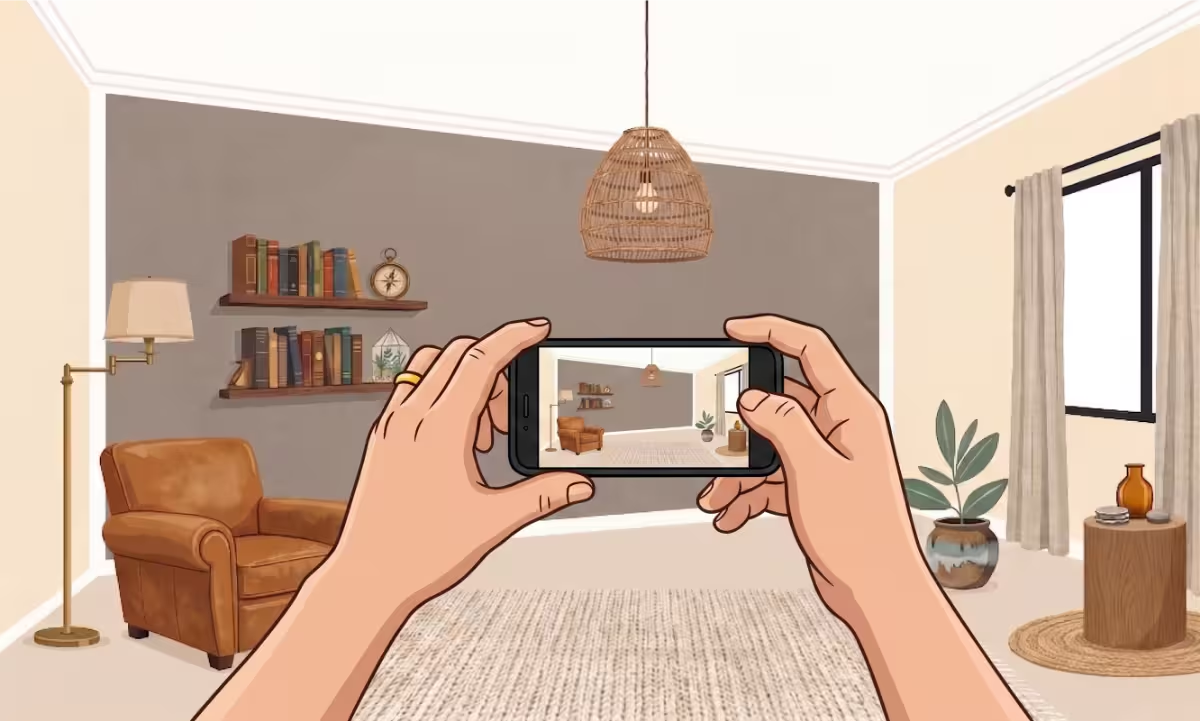
Capture your wall
Stand about 2 meters from your wall, hold the phone straight, and take a photo of the full wall.
Step Three
Align and save
Follow the same corner-adjustment steps as Method B. Save or share when you are happy with the result.
Pro Tips for the Best Preview
Frequently Asked Questions
Can I see how wood wall art will look in my room before buying?
Yes — use the free wall preview tool on this page to visualise any Glamorwood piece in your own space. Upload a photo of your wall, choose the artwork, and see a realistic preview before you place your order.
Do I need to download an app to preview wall art at home?
No app required. The preview tool works directly in your browser on mobile or desktop. Just open the page, upload your photo, and see the result instantly — no installation needed.
How accurate is the wall preview tool?
The tool gives a true-to-scale representation based on the dimensions you enter. While lighting and wall texture may vary slightly in real life, the preview is accurate enough to judge size, proportion, and overall fit in your space.
What photo should I use for the wall preview?
Use a clear, straight-on photo of the wall where you plan to hang the artwork. Good lighting and a flat angle give the most realistic result. A photo taken with your phone works perfectly.
Can I try different sizes of the same artwork on my wall?
Yes — you can resize the artwork overlay to compare how different dimensions look in your space. This helps you choose the right size with confidence before ordering.
Is my photo stored or shared when I use the wall preview tool?
No — your photo is processed locally in your browser and is never uploaded to our servers. Your privacy is fully protected when using the preview tool.
Can I preview custom wood wall art on my wall too?
Yes — if you have a mockup of your custom design, you can use it in the preview tool just like any other artwork. For custom orders, we also send you a digital mockup before production so you can visualise it first.
What size wood wall art is right for my wall?
As a general guide, artwork should cover 60–75% of the wall space above a sofa or focal point. Use the wall preview tool to test sizes in your actual room — it takes the guesswork out of choosing the right dimensions.


